
Download the latest setup.exe from https://github.com/Krillsson/sys-API/releases/latest and run it
Files will be installed to C:/Program Files/sysapi/
Use your favorite text editor to edit the user & password of the configuration.yml inside the config directory C:/Program Files/sysapi/config/configuration.yml
user:
  username: user # <--- CHANGE ME
  password: password  # <--- AND ME
If you need to change the default application ports 8080 and 8443, you can do so in the C:/Program Files/sysapi/config/application.properties file
Now we can start sys-api using the exe file sysapi.exe. A console window will pop-up and eventually it will settle.
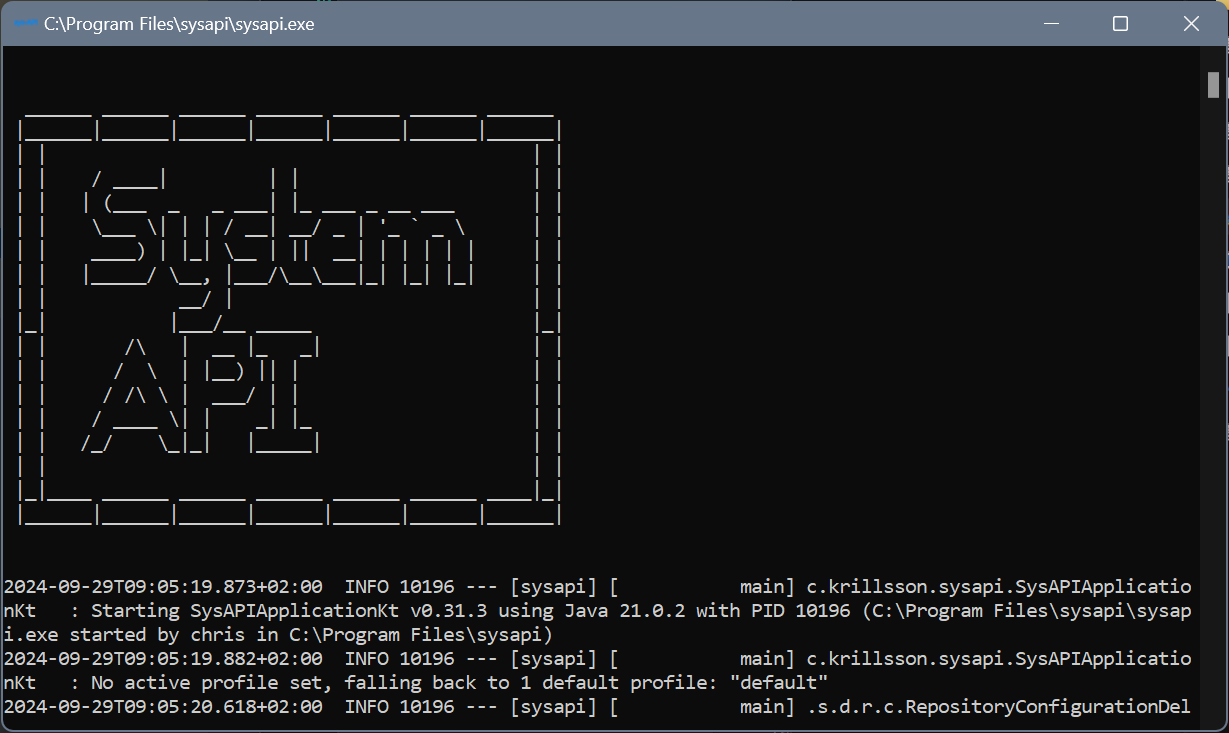
It will pause for a long time at:
“Initializing OpenHardwareMonitor.”
This is normal.
When you see:
[...]: Tomcat started on ports 8443 (https), 8080 (http) with context path '/'
[...]: Started SysAPIApplicationKt in 6.352 seconds (process running for 7.234)
We know that the server is up
After we’ve made sure that it works we can install sys-api as a service. This done using the different .bat files. The names are self-explanatory.
Double-click install-service.bat and wait until it finishes.
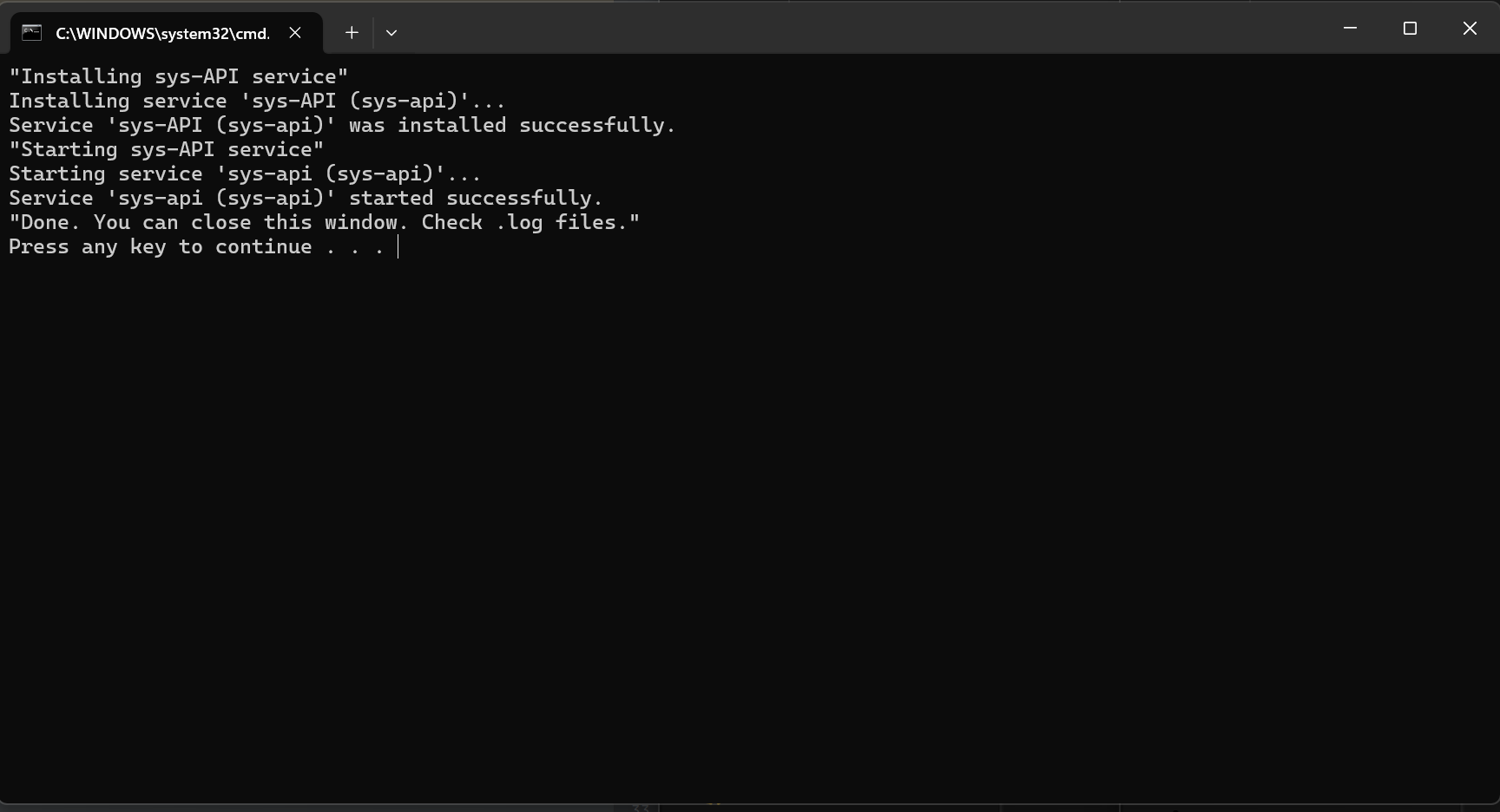
The bat files are just calling the sys-API-servicew.exe with different arguments. You can take a look at winsw documentation if you want to learn more.
If everything worked there will be a few log files in the installation directory. You can also operate the service using the Services program in Windows.
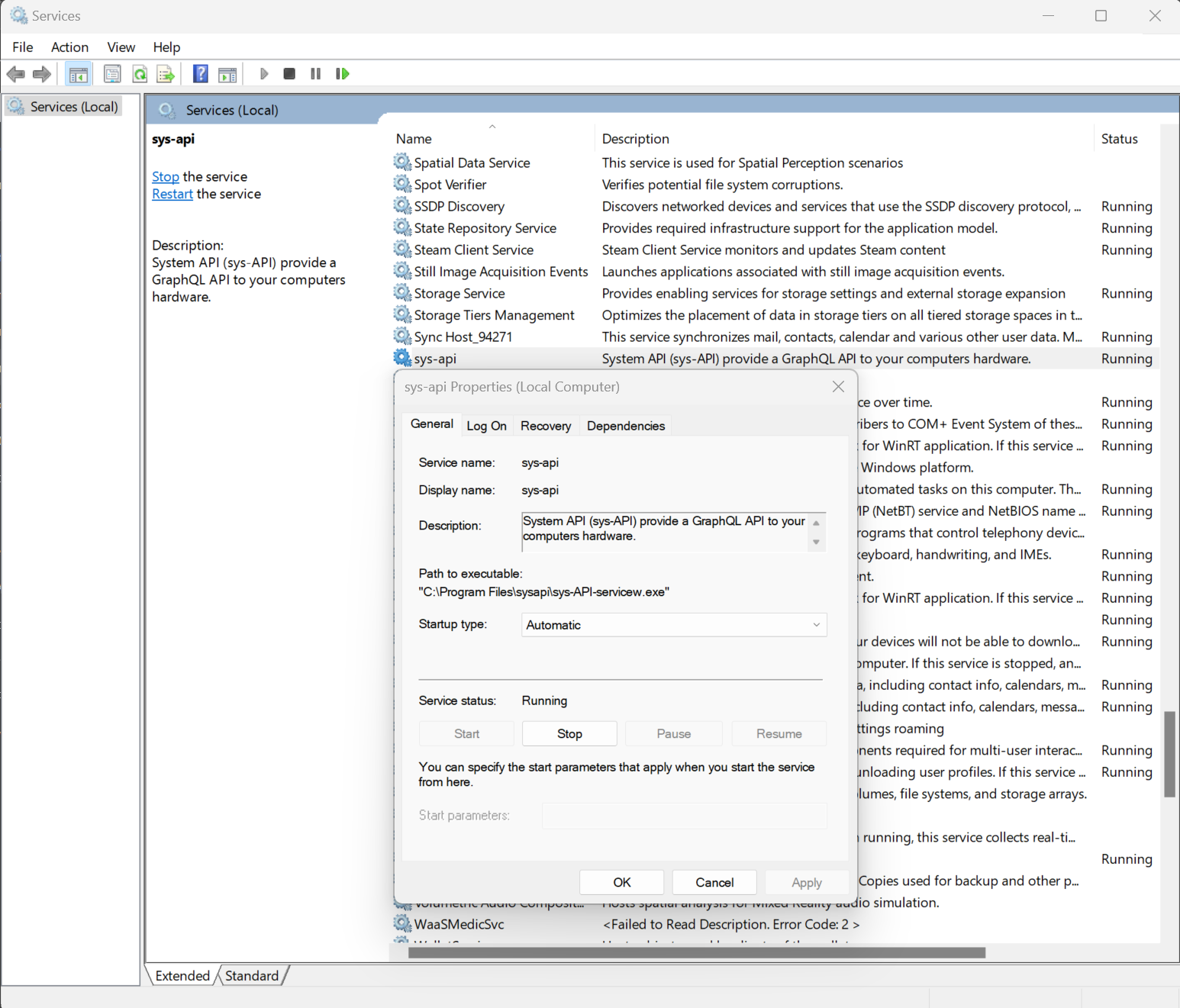
Now you are ready to proceed to next step
Connect App to Server