
The docker template for monitee-agent is pretty standard, so if you are familiar with unraid it will be a easy task.
The template is using host-mode networking. This means the app will fail to start if 8080 and 8443 is not available. To fix it, read the “Prepare configuration” section.
Let’s create a directory in our appdata for monitee-agent and then move into it
This tutorial assumes you are doing it from a terminal. But these parts can also be done from smb or another file manager.
mkdir /mnt/user/appdata/monitee-agent && cd /mnt/user/appdata/monitee-agentNext, lets create the data and config folders inside the monitee-agent directory
mkdir config && mkdir dataLike mentioned earlier, port 8080 and 8443 need to be open. So lets get the config files and configure the username and password as well as the ports.
cd /mnt/user/appdata/monitee-agent/config
wget https://raw.githubusercontent.com/Krillsson/monitee-agent/refs/heads/master/config/configuration.yml
wget https://raw.githubusercontent.com/Krillsson/monitee-agent/refs/heads/master/config/application.properties
Use nano to change the ports in application.properties
nano application.properties#########################################
### sys-API spring configuration ###
#########################################
# Application ports
http.port=8080
server.port=8443Then press CTRL+X to exit nano (and press Y to save)
Then lets change the default username and password
nano configuration.yml#########################################
### sys-API user configuration ###
#########################################
#
# Line 20
user:
username: user # <--- CHANGE ME
password: password # <--- AND MEAgain, press CTRL+X to exit nano (and press Y to save)
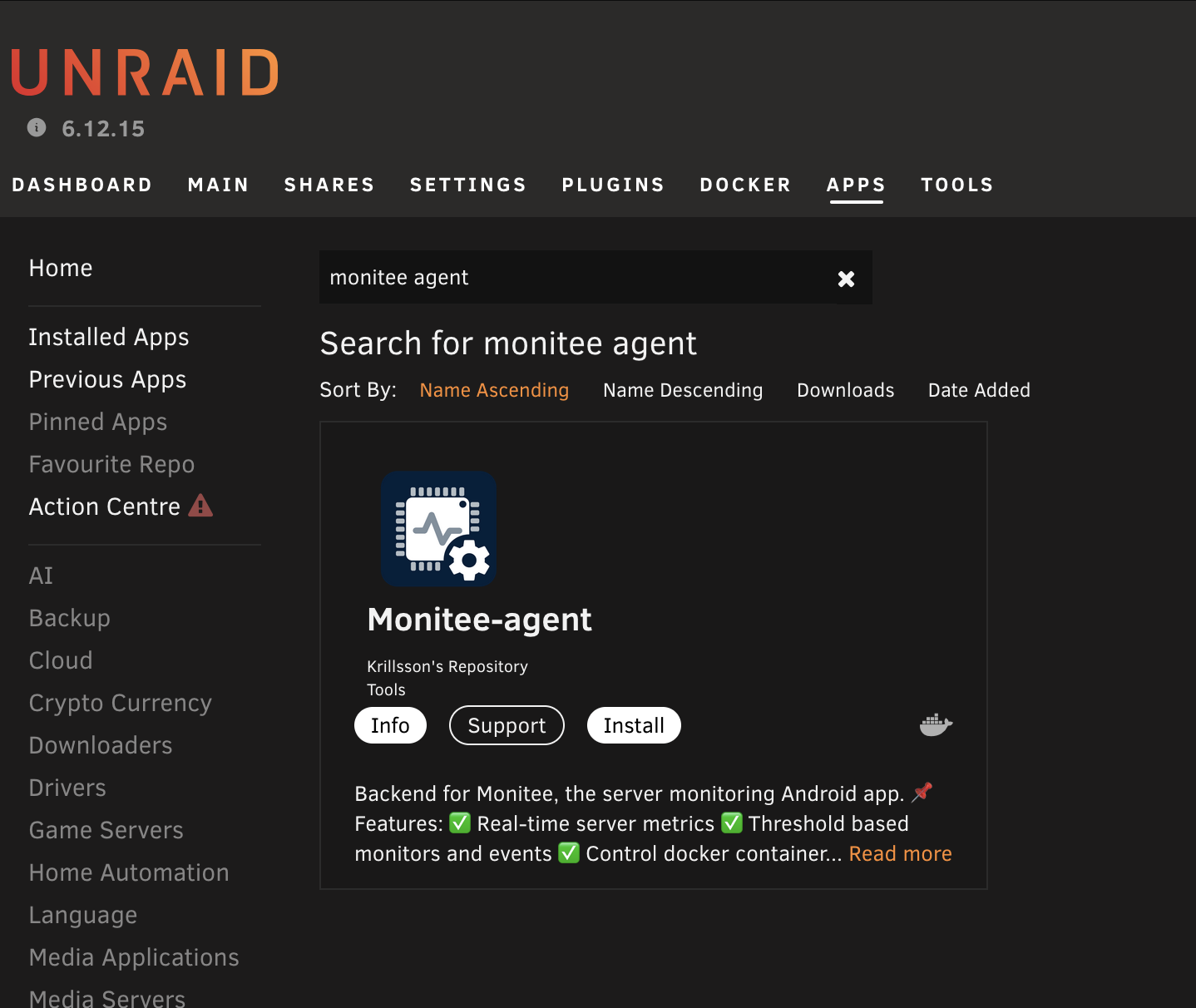
Search for monitee-agent in the Community Applications store.
Now that everything is prepared we can just choose the directories we created during the preparation and the rest will just work.
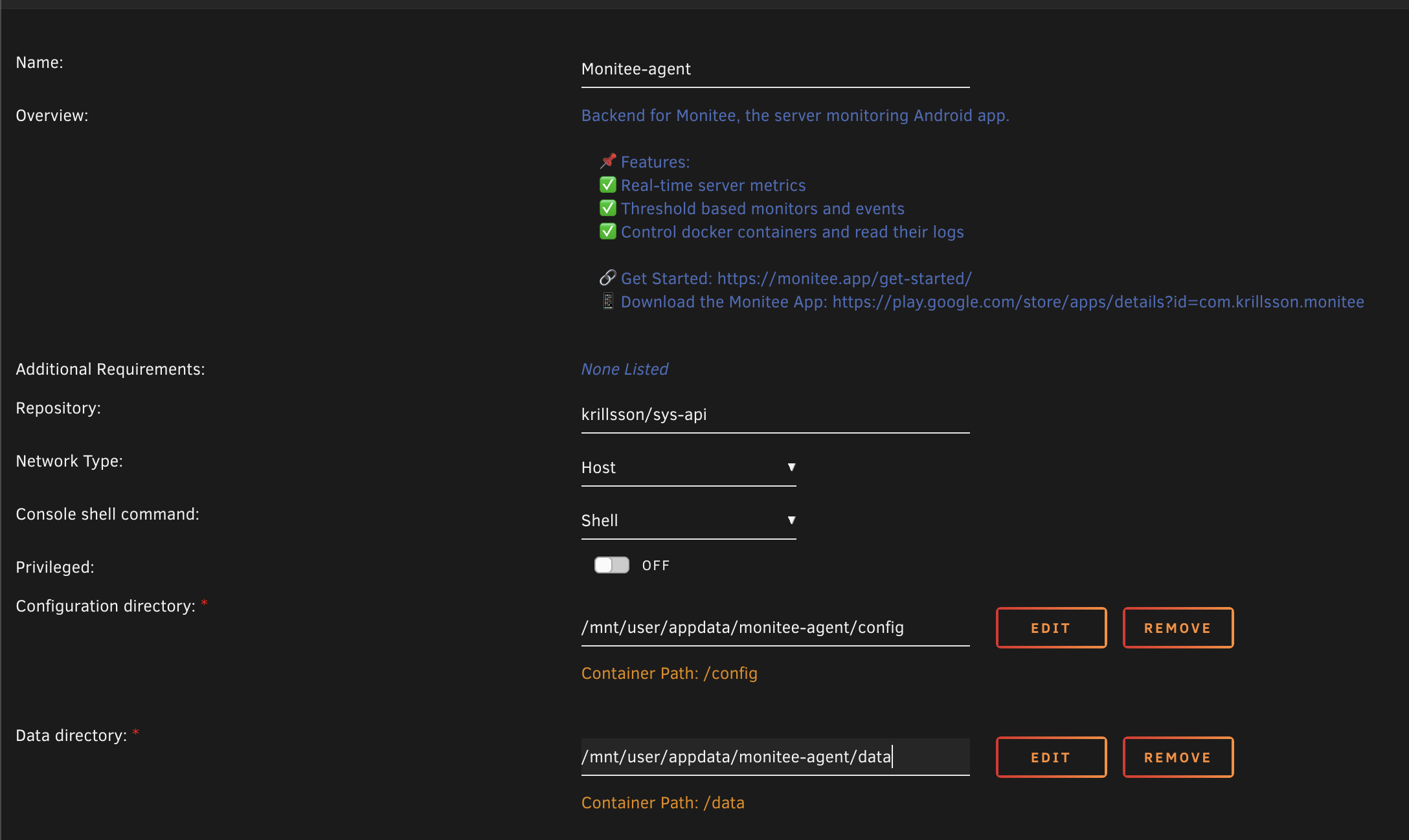
And then lets add the disks we want to monitor as devices inside the “Extra parameters” along with the capability RAWIO.

Example:
–cap-add SYS_RAWIO –device=/dev/sda –device=/dev/sdb
Want to monitor a Nvidia gpu?
Add the following container variables
NVIDIA_VISIBLE_DEVICES = all
NVIDIA_DRIVER_CAPABILITIES = utility
and –runtime=nvidia into Extra parameters:
We can verify that the server is working by looking at the logs in the unraid UI.
[...]: Tomcat started on ports 8443 (https), 8080 (http) with context path '/'
[...]: Started SysAPIApplicationKt in 6.352 seconds (process running for 7.234)
Now you are ready to proceed to next step
Connect App to Server