Log onto your server
First, let’s make sure the server has java installed
java -versionThe version need to be at least java 21
Does it say “-bash: java: command not found“?
Lets install openjdk:
sudo apt-get install openjdk-21-jre-headlessThis will install openjdk version 21. But there are lots of alternatives available. SDKMAN is a great tool to install and manage java versions.
Now that we have java, let’s continue
Let’s create a installation directory in our servers home folder
mkdir ~/sys-api && cd ~/sys-apiThen go to GitHub  in a browser to find latest release download
Copy the URL of the file sysapi-shadow-x.x.x.zip
Then you can download that on your server
Remember to change x.x.x to the actual version when copy pasting
wget https://github.com/Krillsson/sys-API/releases/download/x.x.x/sysapi-shadow-x.x.x.zipThen we can unzip the content into the folder
unzip sysapi-shadow-x.x.x.zipMove into that directory
cd sysapi-shadow-x.x.xUse your favorite text editor to edit the user & password of the config
nano config/configuration.yml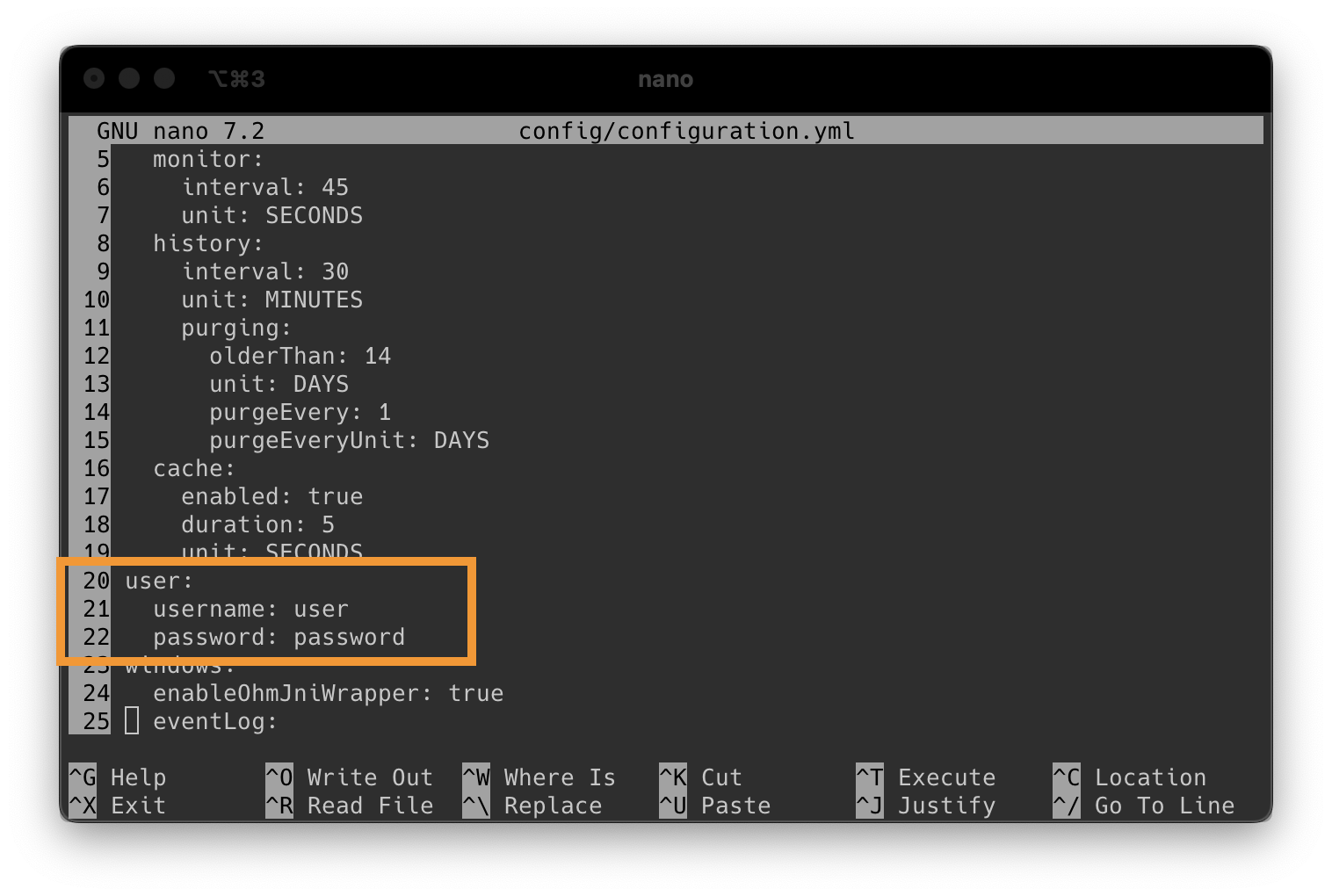
Then press CTRL+X to exit nano (and press Y to save)
Now we can use nohup to run the process disconnected from the terminal
nohup ./run.sh &The agent runs the native build, which uses less memory, and falls back to Java on hosts it can’t run on. To choose for yourself, start it with SYSAPI_RUNTIME=jvm ./run.sh or put the word in a file named runtime in the config directory: jvm always runs Java, native runs the native build without falling back, and auto is the default.
Then press CTRL+C on your keyboard to get back to your terminal input
Now we can verify that the server started correctly by reading and following the latest lines in the output file
Let’s verify the server started correctly
tail -f nohup.outIf you see this message without any error after it. That means the server is up and running
[...]: Tomcat started on ports 8443 (https), 8080 (http) with context path '/'
[...]: Started SysAPIApplicationKt in 6.352 seconds (process running for 7.234)
Again, press CTRL+C to get back to the terminal
Now you are ready to proceed to next step
Connect App to Server